PawsPet

PawsPet Business for professionals

Grooming appointment calendar app, also for pet sitting and boarding

PawsPet Business is the app with a grooming appointment calendar that also fits pet sitters, boarding kennels, vet practices and other pet businesses. Pick the List, Month, Week or Day view, create appointments with a client, their pets and a duration from your price list, and mark closures that block online bookings. Orders paid in the app with a set time show up read-only: you manage them from the «Orders» tab.

Continue in PawsPet Business
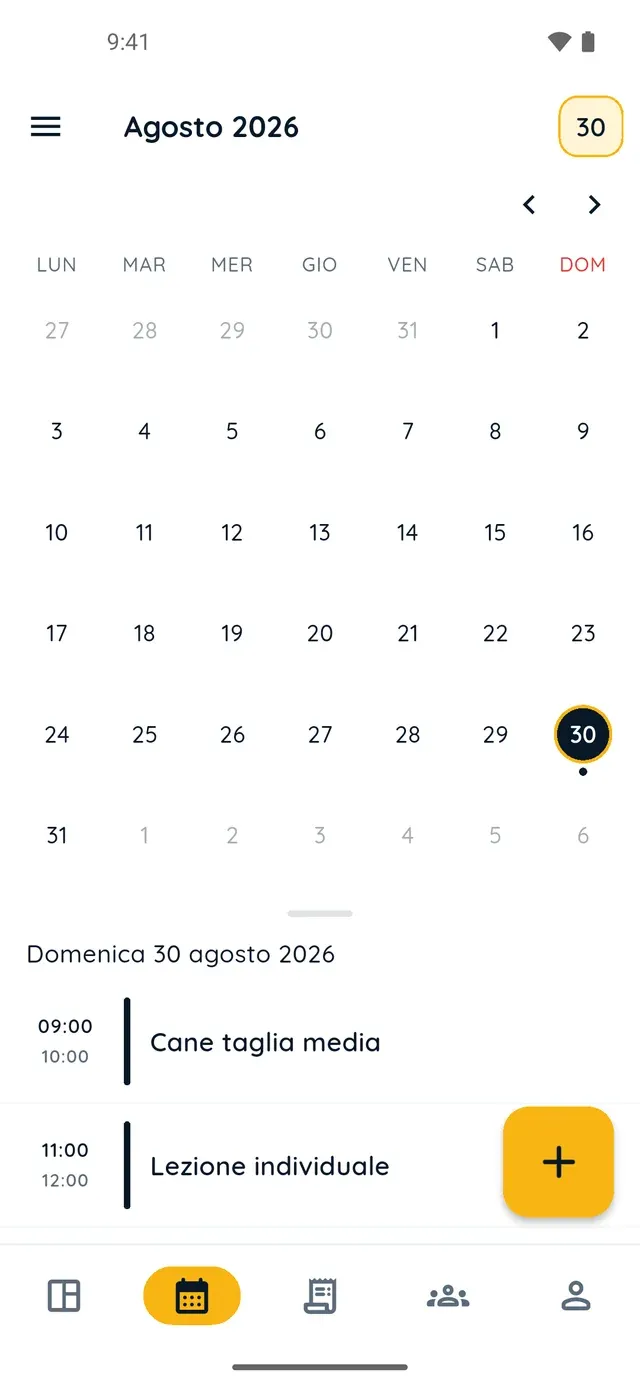
Monthly calendar in PawsPet Business

PawsPet Business

Why it helps

Four views: List, Month, Week and Day

From the top-left menu pick the view you need: a chronological List, the Month with a dot for every booking, the Week with a line at the current time, or the Day, already scrolled close to the current hour. The app remembers your last view after a restart.

Appointments with client, pets and automatic duration

Tap «+», pick a client from the list or create one on the spot, select their pets, then choose a service and one of its options: the duration fills in by itself. With no client or service, a title is enough to block generic working time.

Overlaps are flagged, not blocked

If the time you pick clashes with another appointment, an order with a fixed time or a closure, the appointment is saved anyway and an «It overlaps» notice lists what it collides with. You decide whether to move it or keep it.

Holidays and closures that stop online bookings

With «Block time» you mark holidays, an extra closing day or half a day off: during that interval nobody can book you from the marketplace and the block appears in the calendar as a grey dashed slot. In the Day view, just press and hold on a free slot.

Appointment calendar

What it means for your day.

  1. Open the Agenda tab and choose a view

    In the PawsPet Business bottom bar tap «Agenda». From the top-left menu choose «List», «Month», «Week» or «Day»; the arrows move to the previous or next period, tapping the period title jumps to any date, and the box in the top-right corner takes you back to today.

  2. Create the appointment with «+»

    Tap «+»: with «Pick a client» search for a client or create a new one on the spot, then select their pets. Choose a «Service» and an «Option» and the «Duration» fills in by itself; otherwise type a «Title». Set the «Start» or switch on «All day», add a note and tap «Save».

  3. Close the day: «Done», «No-show» or «Edit»

    Tap an appointment in any view: while it is «Scheduled» you can mark it «Done», «No-show» or «Cancel appt», open «Edit» to move it, or «Delete» to remove it from the calendar. Tapping an order in the calendar opens its detail page: you manage it from there, not from the calendar.

Appointment calendar

Frequently asked questions

How much does the PawsPet Business grooming appointment calendar app cost?

There is no subscription and no monthly plan: calendar, clients, pet records and price list are free. PawsPet keeps a fee only on orders the client pays in the app; the appointments you create yourself in the calendar cost nothing. For new profiles, payments are online only: in-person payments are not available.

Does the calendar warn me if I book two appointments at the same time?

Yes. After saving, an «It overlaps» notice lists what the appointment collides with: another appointment, an order with a fixed time or a closure. The appointment stays saved and you dismiss the notice with «Keep anyway»: it is up to you to change it with «Edit».

How do I mark holidays and closures so nobody can book me?

«Agenda» tab » top-left menu » «Closing hours» » «Block time»: switch on «All day», set the dates, add a reason if you like and tap «Block». During that interval you receive no bookings from the marketplace and the block appears as a grey dashed slot in the calendar. Delete it whenever you want from the same list or by tapping it.

The client did not show up: how do I record it?

Tap the appointment and choose «No-show»: it stays in your history with that status, unlike «Delete», which removes it from the calendar. If you made a mistake, «Reopen» puts it back to «Scheduled» and from there you can mark it «Done» or edit it.

I can see an order in the calendar but cannot edit it. Why?

Bookings paid in the app appear in the calendar read-only, on the day and time set, in the colour of their status. Tapping the block opens the order detail: accepting, declining or otherwise handling the order is done from there or from the «Orders» tab, not from the calendar.

PawsPet Business

Bring your business calendar into PawsPet Business

Download PawsPet Business, sign in with your PawsPet account and create your business profile: the calendar is the second icon in the bottom bar. No subscription: a fee only on orders paid in the app.

Download PawsPet Business

Coming soon onApp StoreDownload onGoogle Play

PawsPet Business for iOS is coming soon to the App Store. App screenshots with demonstration or test data.